ESPectre × NM-CYD-C5 Usage Guide
This guide applies to the NM-CYD-C5 running the ESPectre adapted firmware. The firmware provides WiFi CSI human motion detection, a real-time on-screen curve, touch threshold adjustment, one-tap calibration, Home Assistant integration, and a web console.
Feature Overview
| Feature | Access |
|---|---|
| MVS / ML motion detection | Runs automatically on the device |
| Movement curve and Threshold line | Device screen |
| Manual threshold adjustment | Screen buttons, Home Assistant, or web console |
| NBVI auto-calibration | Screen CALIBRATE button or Home Assistant entity |
| Home Assistant integration | Native ESPHome API |
| Entity viewing, logs, and OTA | Browser at the device IP |
| 25 Hz real-time curve | Web Bluetooth monitor |
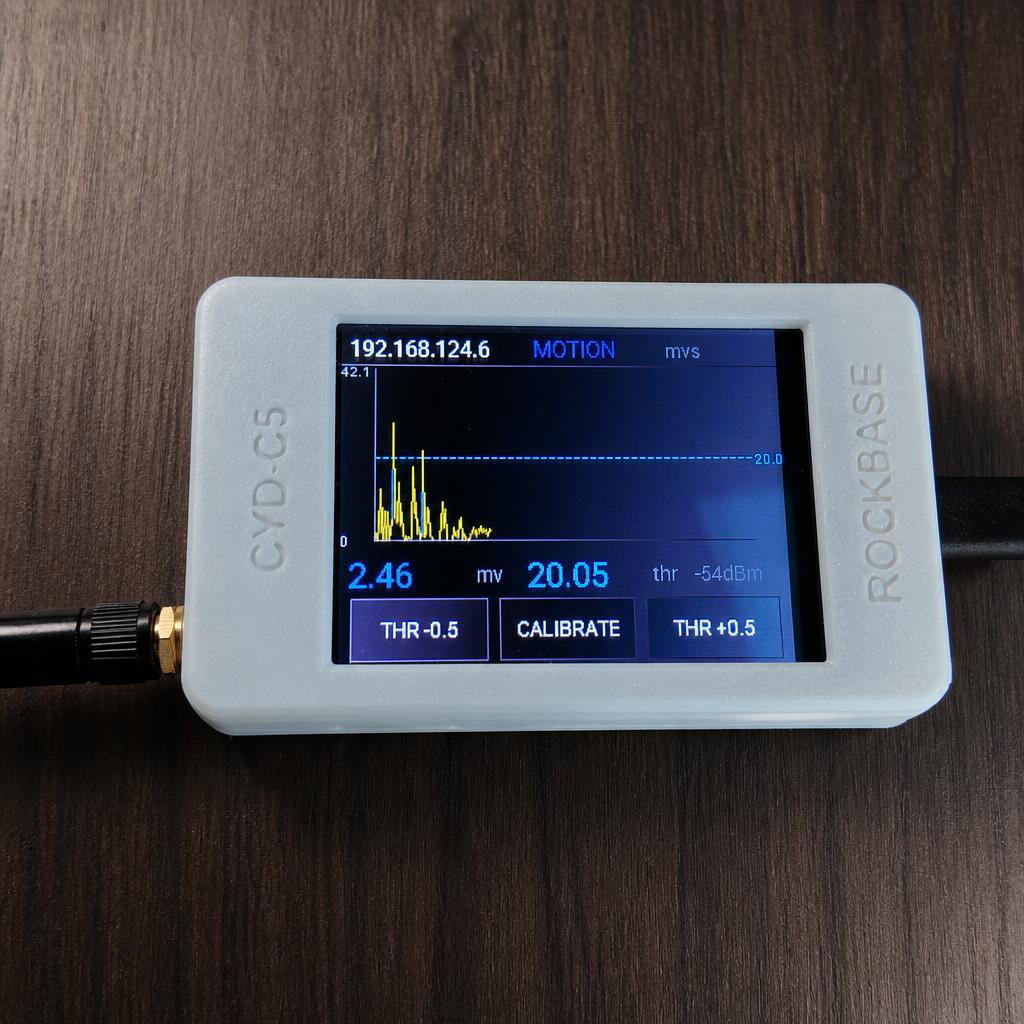
First-Time Provisioning
The device has no saved WiFi credentials on first boot and automatically starts a provisioning hotspot:
- On your phone or computer, connect to the WiFi hotspot named
ESPectre Fallback. - Wait for the browser to open the provisioning page automatically; if it does not, visit
http://192.168.4.1. - Select the 2.4 GHz WiFi network in your environment and enter the password.
- The device reboots and connects to WiFi automatically.
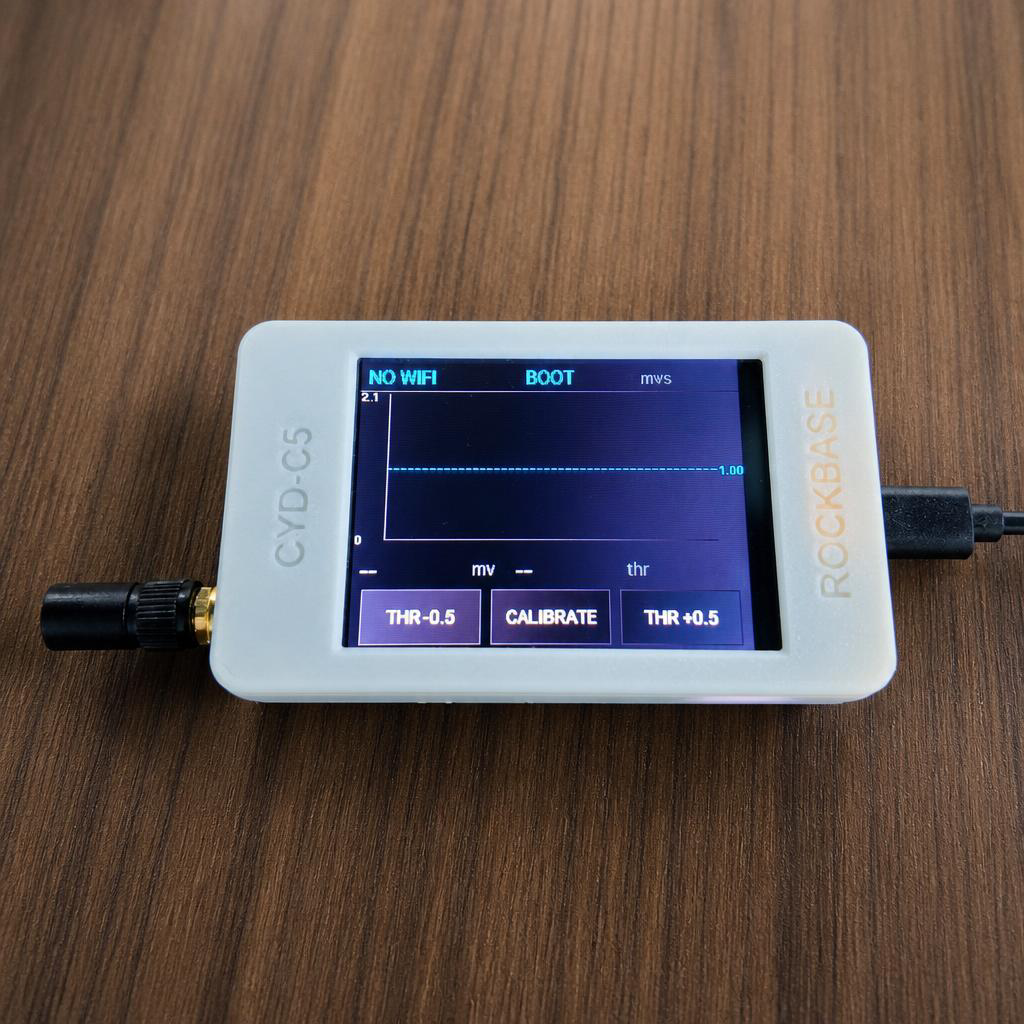
- Once connected, the device IP address is shown in the top-left corner of the screen; a yellow
NO WIFIis displayed when not connected.
ESPectre performs detection over 2.4 GHz WiFi CSI, so a 5 GHz network cannot be used for motion sensing. Provisioning can also be completed via BLE Improv in the Home Assistant mobile app.
Adding to Home Assistant
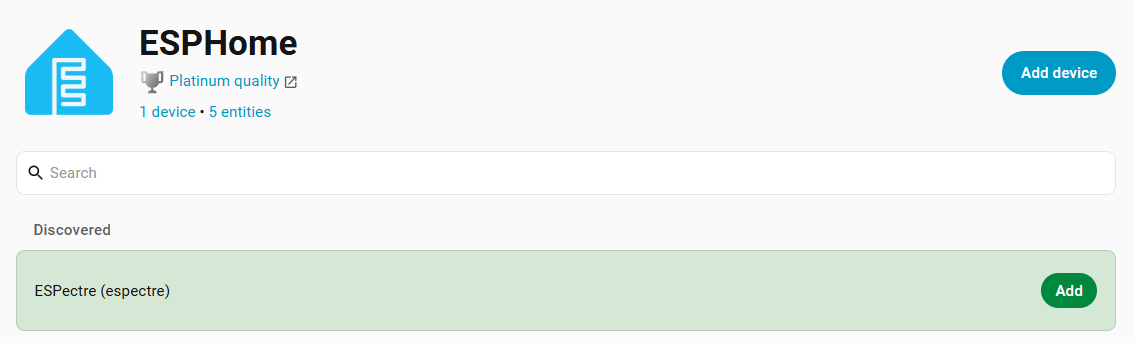
Make sure the NM-CYD-C5 and Home Assistant are on the same network, then follow these steps:
- In Home Assistant, open Settings → Devices & Services → Add Integration, and install or select ESPHome.
- Wait for the device to be discovered automatically via mDNS; the default hostname is
espectre. - If it is not discovered automatically, enter the IP address shown on the screen manually, using port
6053. - Confirm the connection to finish adding the device.
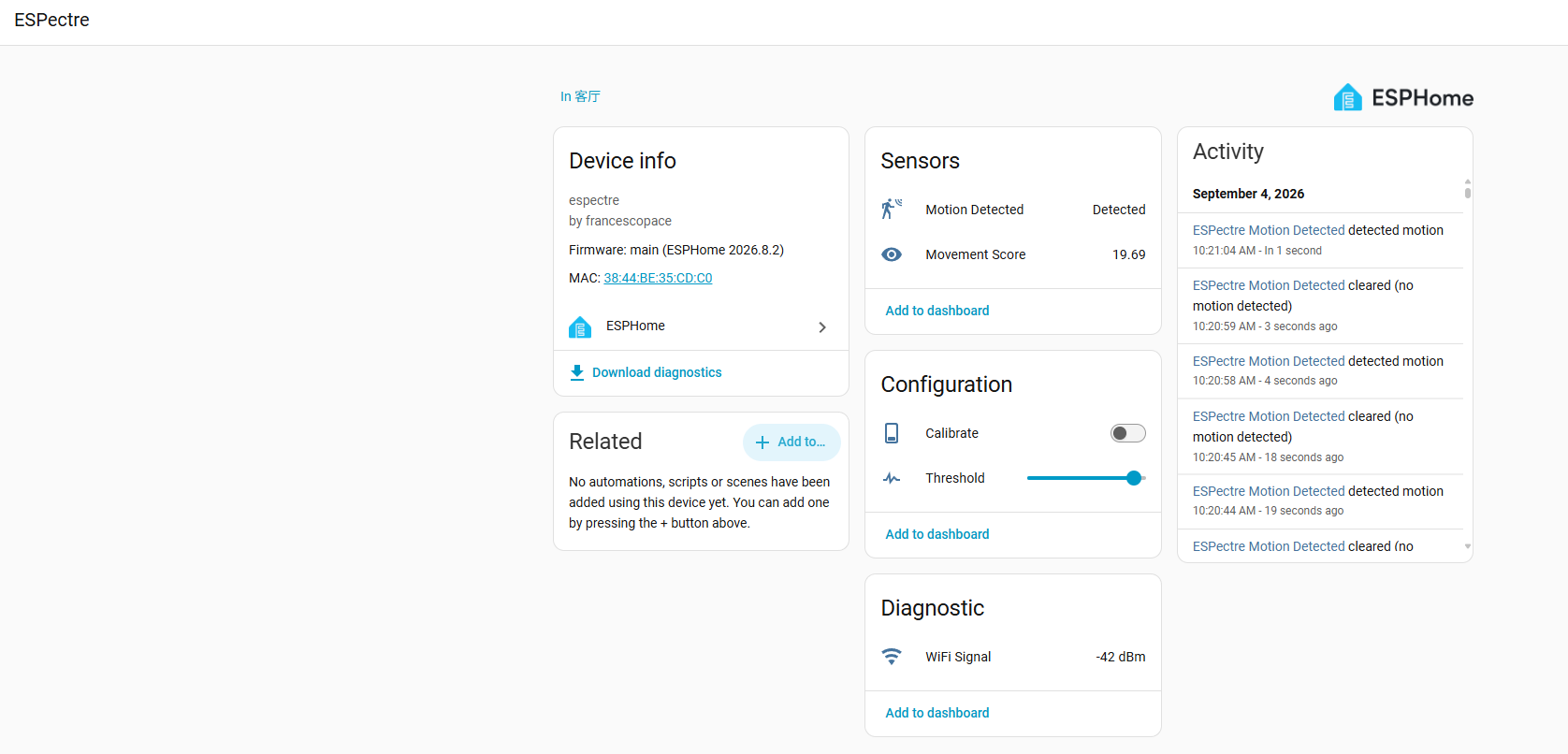
The following entities are available after adding:
| Entity | Type | Description |
|---|---|---|
| Movement Score | sensor | Current motion score; also the data source of the on-screen curve |
| Motion Detected | binary_sensor | Motion state after thresholding and hysteresis |
| Threshold | number | Manual detection threshold, range 0–10 |
| Calibrate | switch | Triggers recalibration; turns off automatically when done |
| WiFi Signal | sensor | Current WiFi signal strength in dBm |
Screen Operation
- Curve area: shows about 4.5 minutes of scrolling history. Curve segments below the threshold are cyan; segments above the yellow threshold line are red.
- THR -0.5 / +0.5: adjusts the manual threshold in 0.5 steps; changes take effect immediately.
- CALIBRATE: starts NBVI recalibration. Calibration takes about 10 seconds — do not move the device and keep the detection area clear of people during this time.
- Status text:
MOTIONmeans motion is detected,IDLEmeans the environment is static,CALIBRATINGmeans calibration is in progress, andBOOTmeans the device is starting up.
If you get too many false positives, raise the threshold slightly; if you get too many missed detections, lower it slightly. When the device position or room layout changes, recalibrate first, then make small manual adjustments.
Web Console
Visit http://<device-ip>/ on the same LAN to:
- View the states of entities such as Movement Score and Motion Detected;
- Adjust the Threshold or trigger Calibrate;
- View the device logs in real time;
- Upload
firmware.ota.binfor an OTA update.
The default configuration has no web access password and should only be used on a trusted LAN. To restrict access, enable web_server.auth in the firmware YAML.
Bluetooth Live Monitor
When you need a higher curve refresh rate than the device screen provides, use micro-espectre/espectre-monitor.html from the ESPectre repository. Open the page in Chrome or Edge with Web Bluetooth support, connect to the device, and view the 25 Hz Movement and Threshold curves, as well as adjust the threshold with a slider.
Daily Usage Tips
- Avoid large metal obstructions between the device and the router;
- Do not place the device too close to the router — keep at least 50 cm of distance;
- Recalibrate when the device is moved, furniture is rearranged, or false positives/negatives become noticeable;
- Keep the room still during calibration and avoid people walking through the detection area;
- After a brief WiFi disconnect, the device reconnects automatically and CSI detection resumes.
Troubleshooting
| Symptom | Solution |
|---|---|
Screen shows NO WIFI | Connect to the ESPectre Fallback hotspot and provision again, making sure to select a 2.4 GHz network |
| Device web page cannot be opened | Confirm your computer and the device are on the same subnet, and that the current firmware has web_server enabled |
| Home Assistant cannot find the device | Check the subnet and VLAN; or add it manually with the IP address shown on the screen and port 6053 |
| Touch buttons unresponsive or offset | Adjust the four boundary values of touchscreen.calibration in the YAML |
| Unstable calibration results | Recalibrate with a still environment, and check the distance and signal quality between the device and the router |
| Too many false positives | Recalibrate first, then raise the threshold gradually |
| Too many missed detections | Recalibrate first, then lower the threshold gradually |
| How to update the firmware | Upload the OTA firmware from the web console, or upload over WiFi via ESPHome |
For the hardware mapping and refresh mechanism, see ESPectre Implementation on NM-CYD-C5.