ESPectre Implementation on NM-CYD-C5
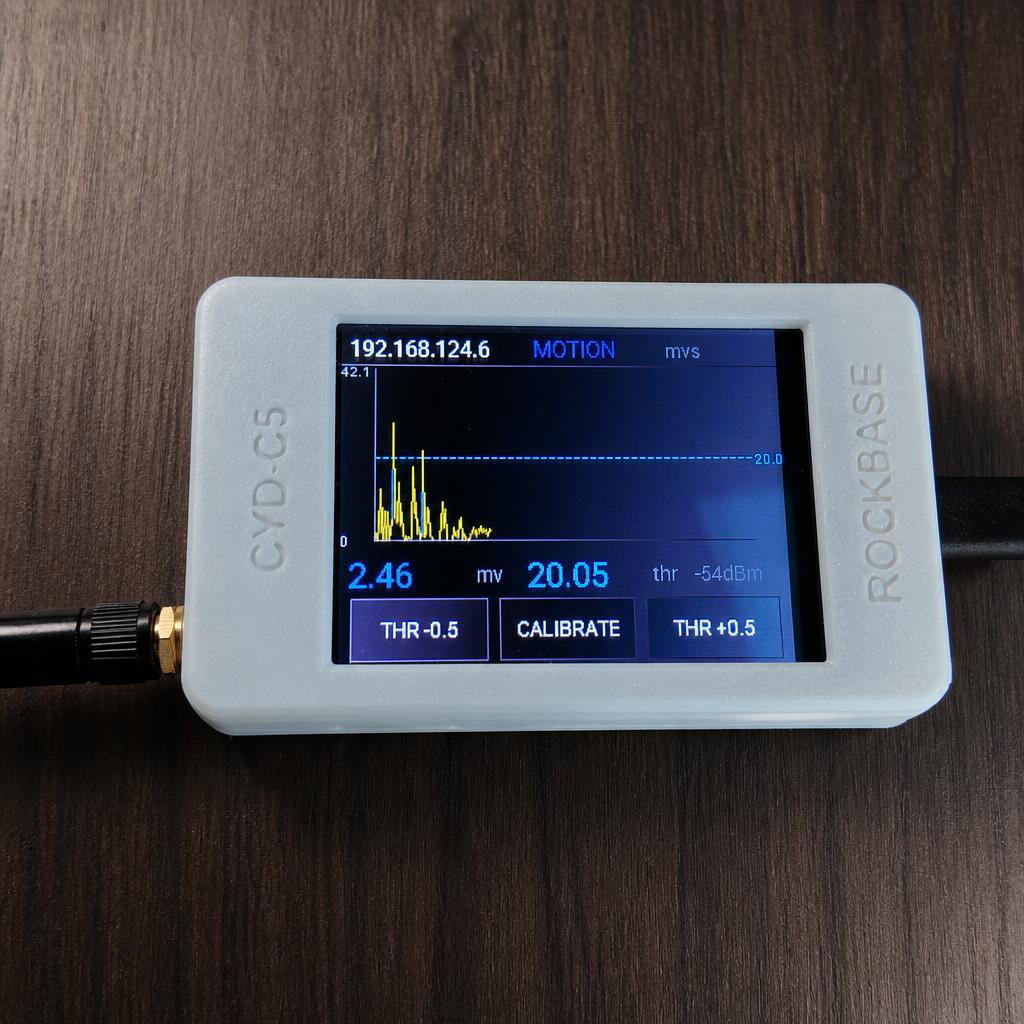
This solution ports the WiFi CSI human motion detection of ESPectre to the NM-CYD-C5, using the on-board display and touch panel to provide a real-time curve, threshold adjustment, and one-tap calibration. The implementation is entirely driven by the ESPHome configuration — no changes to the ESPectre C++ component are required.
Hardware Mapping
| Function | Pins | Implementation Notes |
|---|---|---|
| SPI | SCK=GPIO6, MISO=GPIO2, MOSI=GPIO7 | Shared bus for LCD, touch panel, and SD card |
| LCD | CS=GPIO23, DC=GPIO24 | 2.8-inch ST7789, 320×240, using ESPHome mipi_spi |
| Backlight | GPIO25 | Active high, controlled by the display component's enable_pin |
| Touch panel | CS=GPIO1 | XPT2046 resistive touch, polling mode |
| SD card | CS=GPIO10 | Not used by the current firmware |
| RGB LED | GPIO27 | Not used by the current firmware; can be extended as a motion indicator |
| MCU | ESP32-C5-WROOM-1 | 16 MB Flash, 8 MB PSRAM |
Reference touch calibration range: X: 185–3700, Y: 250–3800. Resistive touch panels vary between units; if the button positions are offset, fine-tune touchscreen.calibration in the ESPHome configuration based on the actual readings of your device.
Visualization Data
The existing entities of the ESPectre component already cover everything the screen interaction needs — no new component interfaces are required:
| Data or State | ESPHome Entity | Screen Use |
|---|---|---|
| Movement score | movement_sensor | Plots the real-time motion curve |
| Motion state | motion_sensor | Shows IDLE or MOTION |
| Movement Threshold | threshold_number | Draws the threshold line and receives touch adjustments |
| Calibration state | calibrate_switch | Triggers recalibration and shows the calibration status |
| WiFi signal | wifi_signal | Shows RSSI |
Movement is published about once per second by default. The screen keeps 272 samples, providing roughly 4.5 minutes of scrolling history. The Y axis auto-scales based on the historical peak and the current threshold; curve segments above the threshold are drawn in red, and the rest in cyan.
Screen Layout
┌──────────────────────────────────────────────┐
│ 192.168.1.100   MOTION / IDLE / CAL     MVS  │
├──────────────────────────────────────────────┤
│        ╭─╮          Movement curve (cyan)    │
│       ╱   ╲╭─╮      over-threshold (red)     │
│  - - - - - - - -   Threshold (yellow dash)   │
├──────────────────────────────────────────────┤
│  1.83 mv   1.10 thr                 -55 dBm  │
├────────────┬──────────────────┬──────────────┤
│  THR -0.5  │    CALIBRATE     │   THR +0.5   │
└────────────┴──────────────────┴──────────────┘
The top status bar shows the IP address, detection state, and algorithm; the middle area shows the scrolling curve; the three touch zones at the bottom lower the threshold, recalibrate, and raise the threshold.
Touch Interaction
| Button | Action | Behavior |
|---|---|---|
THR -0.5 | Calls number.set | Lowers the manual threshold by 0.5, down to a minimum of 0 |
CALIBRATE | Turns on calibrate_switch | Re-selects subcarriers and computes an adaptive threshold |
THR +0.5 | Calls number.set | Raises the manual threshold by 0.5, up to a maximum of 10 |
Manual adjustments take effect immediately but only persist for the current session; after a reboot the threshold is recomputed from the YAML configuration or the calibration result. Calibration usually takes about 10 seconds, during which the device and its surroundings should remain still.
Refresh and Shared-SPI Constraints
The LCD and the XPT2046 share the same SPI bus. Display refreshes must be executed uniformly in the ESPHome main loop — the display must not be updated directly from the entity callbacks of Movement, Motion, Threshold, or Calibrate.
It is recommended to set the display component to update_interval: never and trigger redraws from a 1-second interval instead. Entity callbacks only update in-memory state, and the main loop reads the state and refreshes the screen. This prevents display writes and touch polling from contending for the bus simultaneously, which would trigger an spi_master: Cannot acquire bus when a polling transaction is in progress assertion and reboot the device.
Future Extensions
- Expose the gain-lock state as a diagnostic entity and show it in the status bar;
- Expose the calibration sample count to show real calibration progress;
- Add a diagnostic view of the selected CSI subcarriers;
- Use the on-board RGB LED as a motion indicator;
- Turn off the backlight after prolonged inactivity and wake it with a touch.
Next, see the ESPectre × NM-CYD-C5 Usage Guide.