MicroPython with NM-CYD-C5
This guide walks you through deploying MicroPython firmware on the NM-CYD-C5 and running the ST7789 LCD demo using a pure-Python driver.
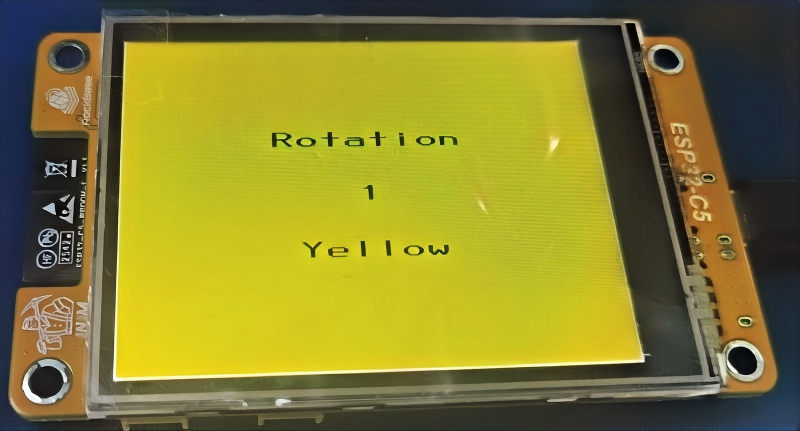
Hardware Preparation
Before you start, prepare the following:
| Item | Quantity | Note |
|---|---|---|
| NM-CYD-C5 board | ×1 | ESP32-C5 with 2.8" ST7789 LCD |
| USB-C cable | ×1 | For power and data |
| Computer | ×1 | Windows / macOS / Linux |
Deploying MicroPython Firmware
Step 1: Install esptool
esptool is the official flashing utility from Espressif. If you already have Python 3 installed, open a terminal and run:
pip install esptool
Step 2: Erase Flash
Before installing MicroPython, erase the entire Flash memory to avoid boot conflicts:
esptool.py --chip esp32c5 erase_flash
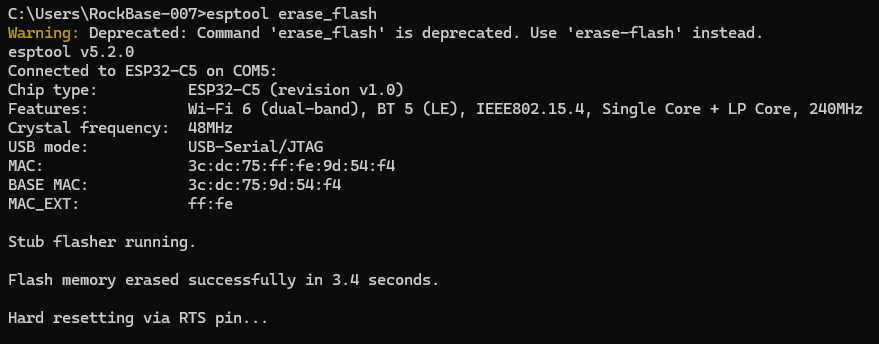
If the board is not detected automatically, specify the port with --port COM3 (Windows) or --port /dev/ttyUSB0 (Linux/macOS).
Step 3: Download MicroPython Firmware
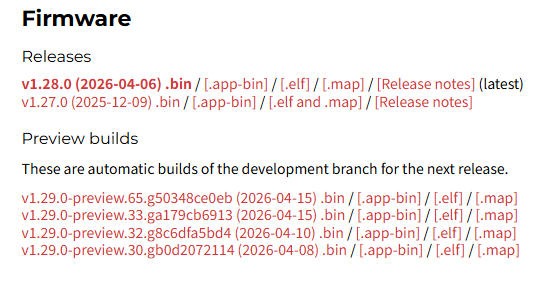
Visit the official MicroPython download page for ESP32-C5:
👉 micropython.org/download/ESP32_GENERIC_C5
Choose the latest Release version, for example:
ESP32_GENERIC_C5-20260406-v1.28.0.bin
Step 4: Flash the Firmware
Important: The starting address for ESP32-C5 is 0x2000 (not 0x1000 like ESP32).
esptool.py --chip esp32c5 --baud 961200 write_flash 0x2000 ESP32_GENERIC_C5-20260406-v1.28.0.bin
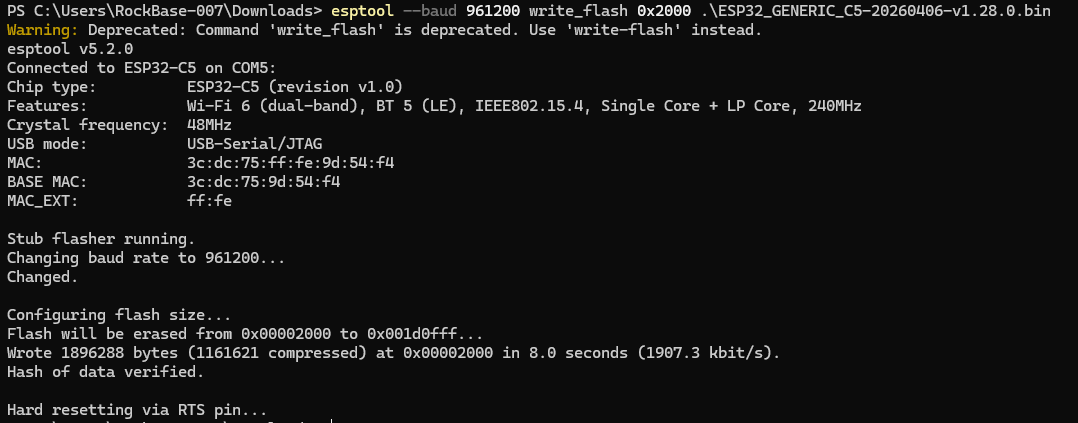
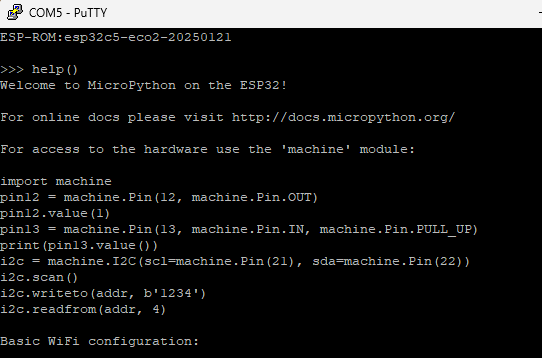
After flashing, open a serial terminal (PuTTY, Tera Term, or mpremote) at 115200 baud. You should see the ESP-ROM boot message followed by the MicroPython REPL prompt (>>>).
Development Environment
You can use either Thonny IDE or Visual Studio Code with the RT-Thread MicroPython extension.
Option A: Thonny IDE (Recommended for Beginners)
- Download and install Thonny.
- Go to Tools → Options → Interpreter.
- Select MicroPython (ESP32) and choose the correct serial port.
- Click OK — the REPL will appear in the shell panel.
Option B: VS Code + RT-Thread MicroPython
- Install Visual Studio Code.
- Install the RT-Thread MicroPython extension from the marketplace.
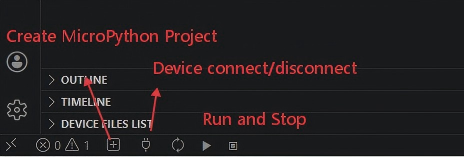
- Connect the NM-CYD-C5 and select the serial port in the extension panel.
ST7789 Screen Demo
The NM-CYD-C5 uses an ST7789 2.8" LCD. RockBase IoT provides a ready-to-use MicroPython driver and configuration for this board.
Step 1: Get the Driver and Config
Clone or download the required files from GitHub:
git clone https://github.com/RockBase-iot/st7789py_mpy.git
git clone https://github.com/RockBase-iot/NM-CYD-C5.git
You need:
st7789py_mpy/st7789.py— Pure-Python ST7789 driverNM-CYD-C5/Demos/MicroPython/tft_configs/nm-cyd-c5/tft_config.py— Board-specific pin config
Step 2: Create a MicroPython Project
In your IDE, create a new project with the following file structure:
project/
├── st7789.py        # LCD driver
├── tft_config.py    # NM-CYD-C5 pin config
├── rotations.py     # Demo script
Step 3: Sync Files to the Board
Using RT-Thread MicroPython in VS Code:
- Click Device connect and select the NM-CYD-C5 serial port.
- Click Sync to upload all
.pyfiles to the board.
Using mpremote:
mpremote connect COM3 fs cp st7789.py :
mpremote connect COM3 fs cp tft_config.py :
mpremote connect COM3 fs cp rotations.py :
Step 4: Run the Demo
Execute rotations.py in the REPL or directly from the IDE:
mpremote connect COM3 run rotations.py
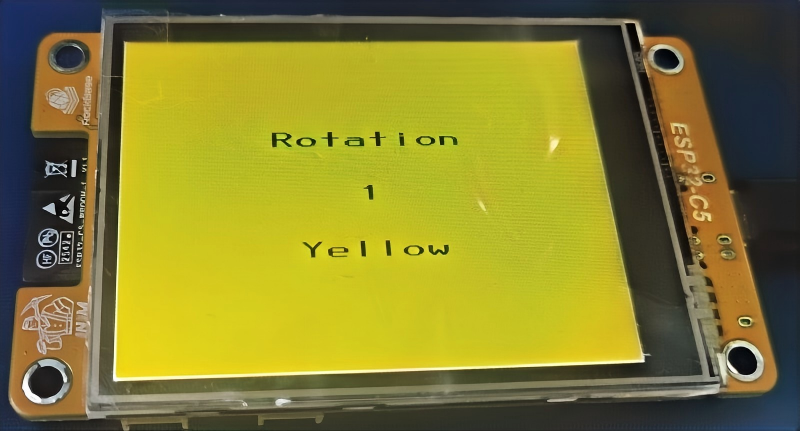
You should see colorful patterns rotating on the LCD:
Example: rotations.py
import tft_config
import st7789
import vga1_16x32 as font

tft = tft_config.config(rotation=0)

tft.fill(st7789.BLACK)
tft.text(font, "RockBase IoT", 40, 100, st7789.CYAN, st7789.BLACK)
tft.text(font, "NM-CYD-C5", 60, 140, st7789.MAGENTA, st7789.BLACK)
Quick Reference
| Task | Command |
|---|---|
| Erase Flash | esptool.py --chip esp32c5 erase_flash |
| Flash Firmware | esptool.py --chip esp32c5 --baud 961200 write_flash 0x2000 firmware.bin |
| REPL | mpremote connect COM3 repl |
| Upload file | mpremote connect COM3 fs cp file.py : |
| Run script | mpremote connect COM3 run file.py |
Troubleshooting
| Issue | Solution |
|---|---|
| Board not detected | Hold BOOT, press RST, then release BOOT to enter download mode |
| Flash write fails | Lower baud rate to 460800 or check USB cable |
| Screen stays black | Verify tft_config.py matches NM-CYD-C5 pinout (SPI pins: IO1=MOSI, IO5=SCLK, IO3=DC, IO6=BL) |
| Import error | Ensure st7789.py and tft_config.py are both uploaded to the board root |